Receiving Slack Notifications(EN)
Receiving Slack Notifications
💡
Slack notifications require a Pro plan or higher.
For Slack’s review team: The test account provided in the submission form has been granted access to this feature at no cost for review purposes.
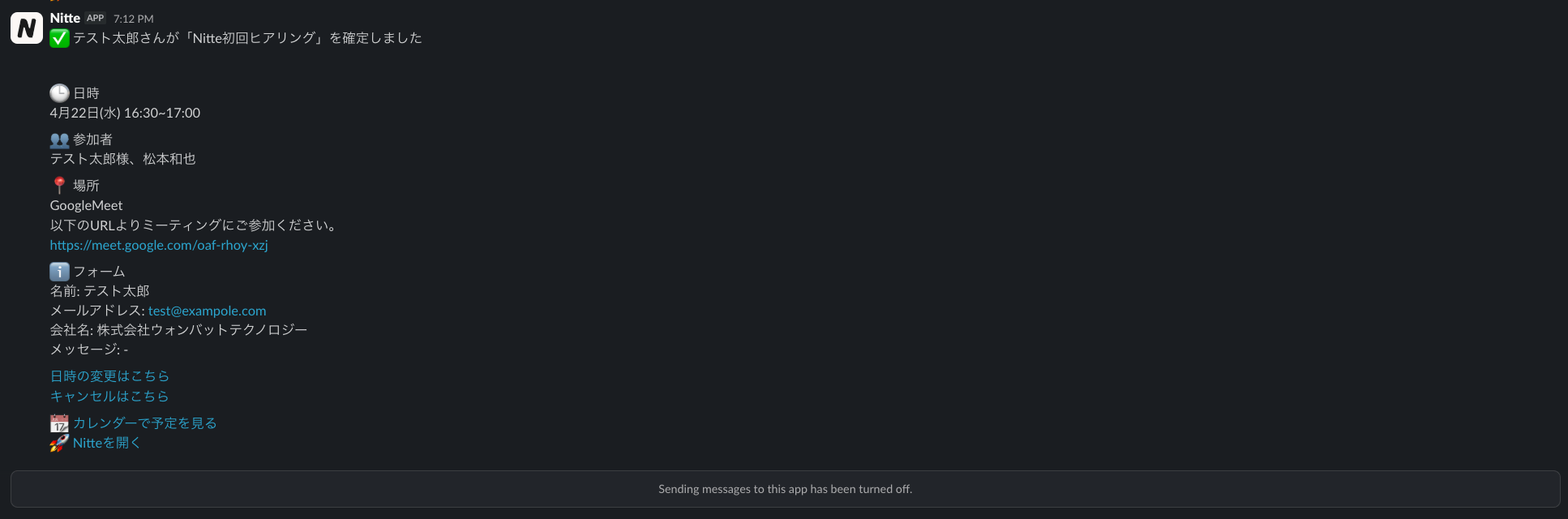
You can receive updates about scheduling activity in Nitte directly in Slack.
There are two types of notifications:
❶ Personal notifications — activity related to you
❷ Page-level notifications — activity on specific scheduling pages
Connecting Slack
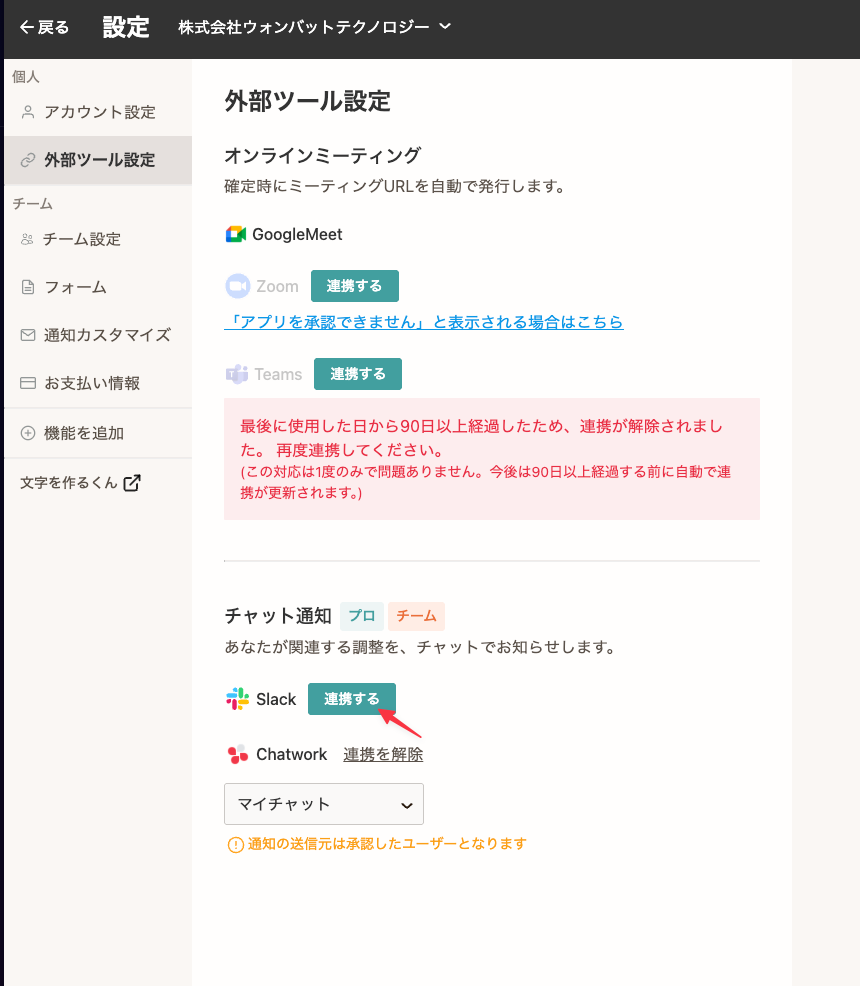
- Go to External Tools Settings and click “Connect” next to Slack.
- Review and approve the requested permissions.
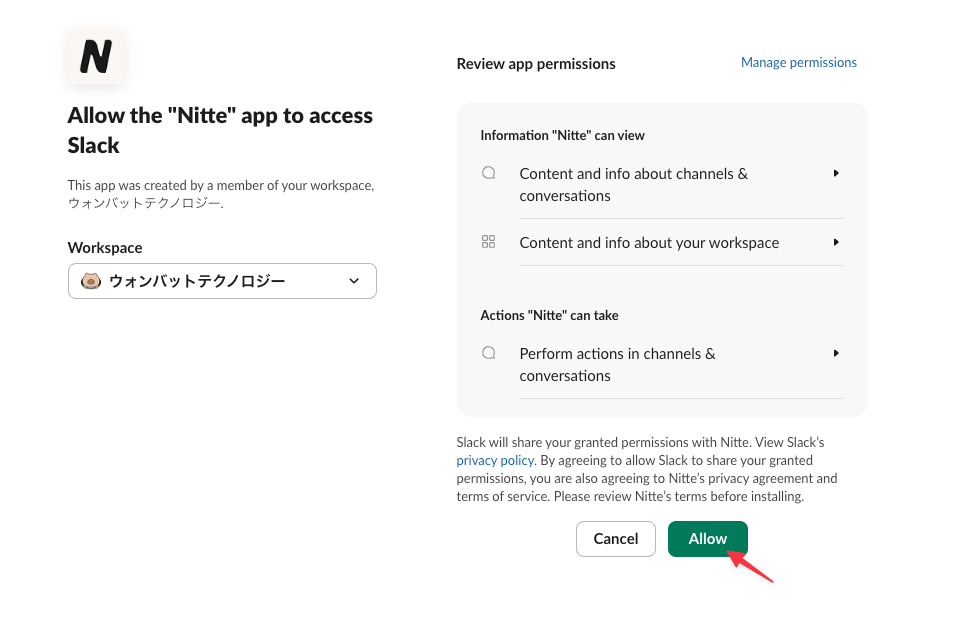
- Why each scope is required
| スコープ | 用途説明 |
| chat:write | Used to post scheduling-related notifications (confirmations, reschedules, cancellations) to the Slack channel or DM configured by the user. |
| chat:write.public | Used to post notifications to user-selected public channels without requiring the bot to be invited in advance. This reduces setup friction for customers. |
| channels:read | Required to display the list of public channels in the workspace within the channel picker in the notification settings UI. |
| groups:read | Required to display private channels (to which the bot has been invited) as options in the channel picker. |
| im:write | Required to open a direct message channel between the bot and a user when "DM" is selected as the notification destination. |
| users:read | Required to display the list of workspace members in the mention picker when configuring @mentions for scheduling notifications. |
| usergroups:read | Required to display Slack user groups (subteams such as @engineering) as options in the mention picker. |
How to Use
Personal Notifications
No additional configuration is required beyond connecting Slack.
Once connected, user notifications from Nitte will be delivered via Slack in addition to email.
Page-Level Notifications
- Open the scheduling page you want to configure from the scheduling page list.
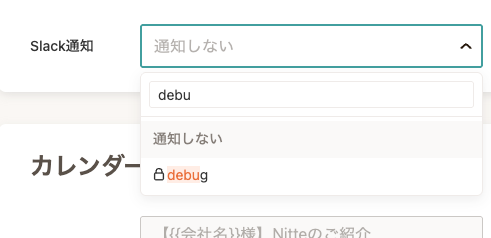
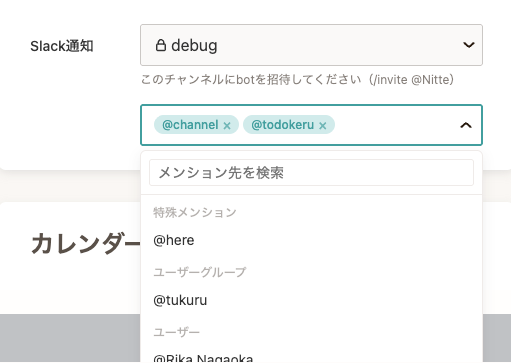
- In the Slack Notifications section:
- Select the channel you want to send notifications to.
- Select the mention target. Special mentions (such as @channel) and user groups can also be specified.
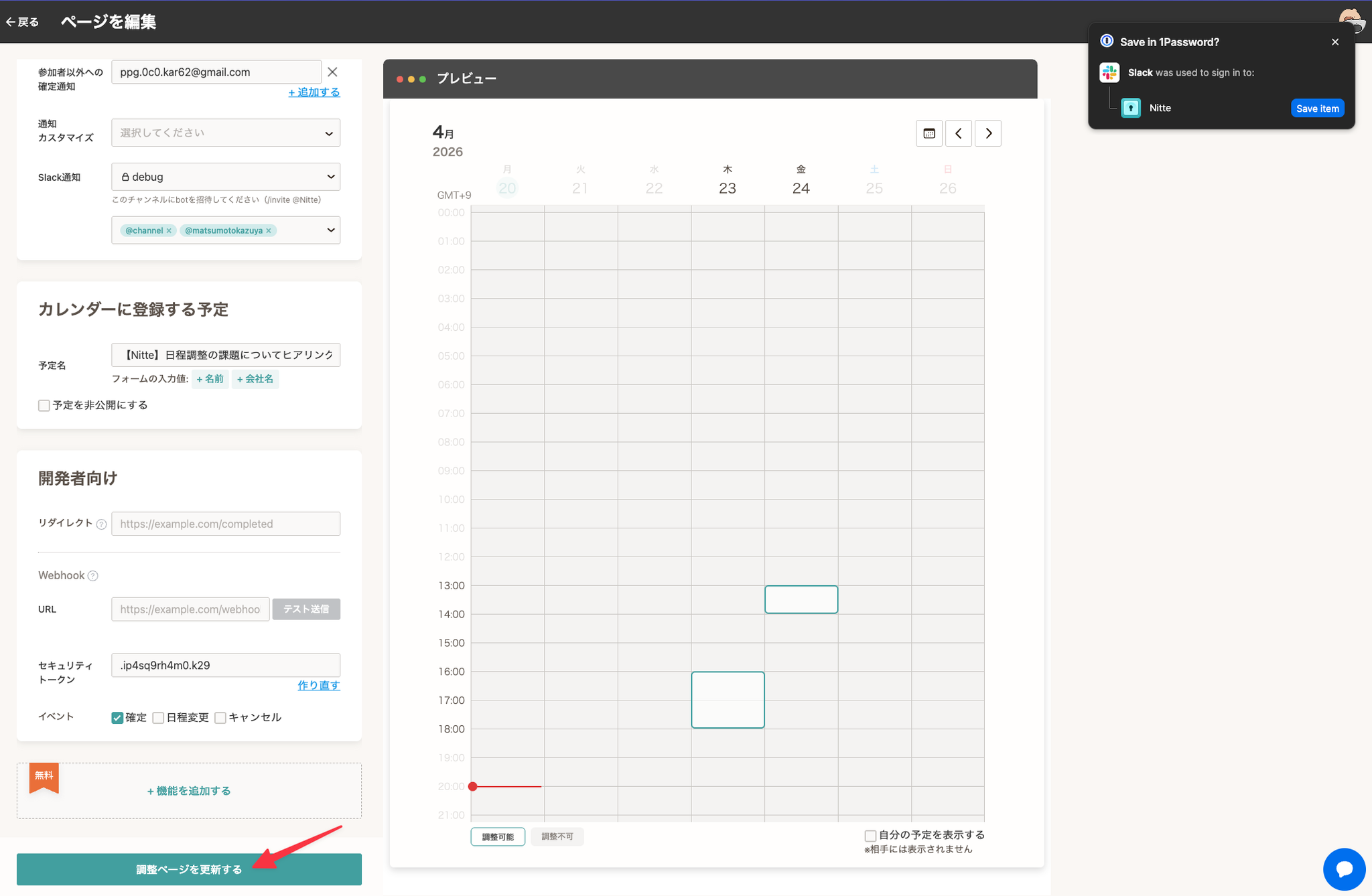
- Save the page.
Check Notification
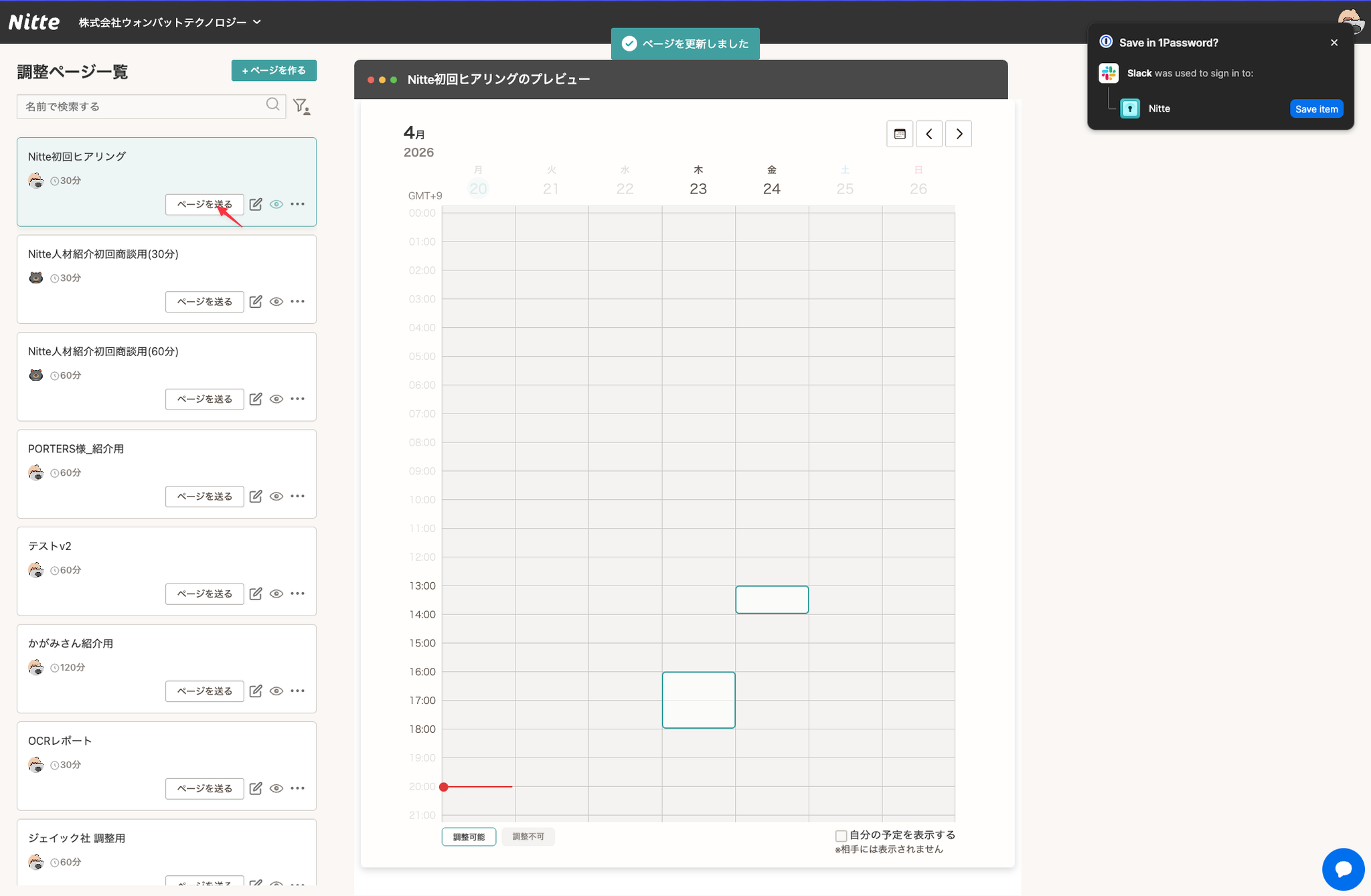
- Copy & Open Booking Page
- Confirm
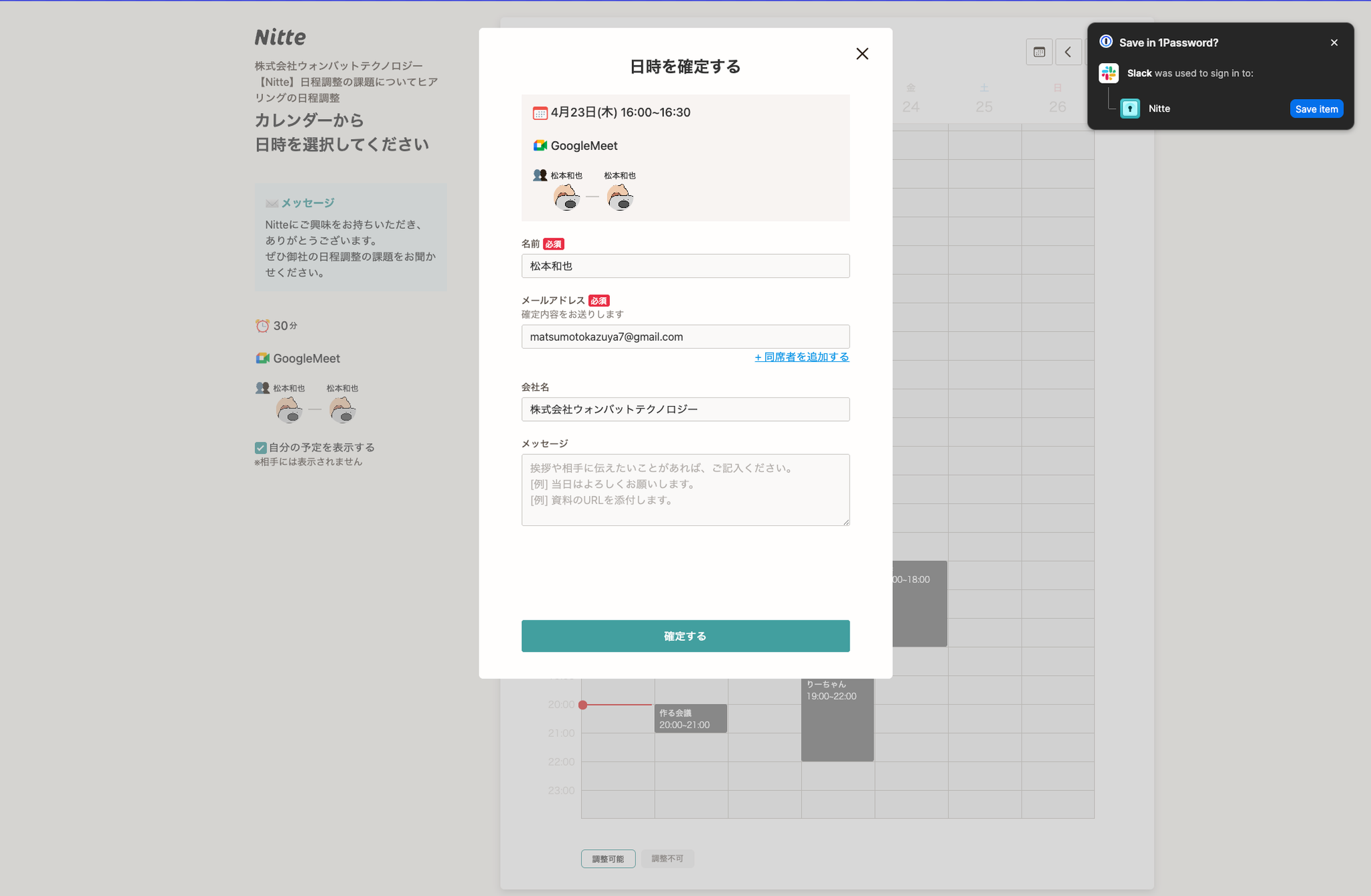
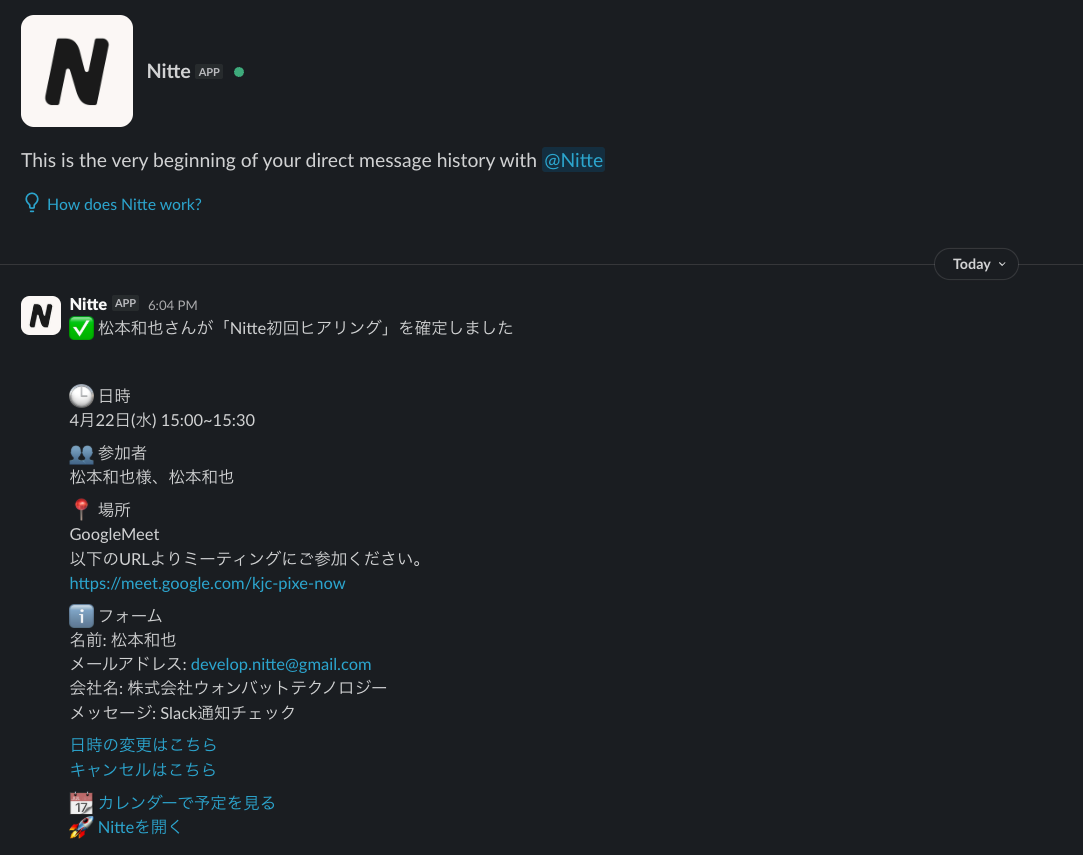
- You will get Slack Notification